Max
Max 
Adding YouTube videos to your website can boost user engagement, help with SEO, and make your content a lot more interactive. But the default YouTube embed code isn’t always ideal when it comes to visually fitting in with your website design or matching user experience goals. The good thing about customizing the embed code is that it allows you to control how the video appears, interacts with users, and even your page performance. In the following section, we will provide detailed tips for customizing YouTube video embed codes with both manual and TubePilot Youtube Video Embed Code Generator settings.
Why Customize YouTube Embed Codes?
A customized embed code will provide a better user experience, clean up your visual design, and even speed up your site. You have the option to remove controls, choose the size of the video, or have it put in as auto-play, which allows you to bring more conformity between video behaviour and your complete content approach.
How to Easily Copy the Plain YouTube Embed Code
Before you can do any customizing, you first need the base YouTube embed code. Here’s how to get it:
- Find the YouTube video. Navigate to the video you wish to embed.
- Click the Share Button beneath the video player.
- Select Embed. This will open a window displaying the HTML embed code.
- Copy the Code: Here is the code that you can modify according to your needs.
Let’s get through some how-to customize it go for manual & auto (TubePilot Youtube video embed code generator) steps are here as well.
1. Adjust the video size.
The YouTube default size might not fit your website design. If needed, you can also change the width and height attributes directly in the embed code:
html
Copy code
<iframe width=”560″ height=”315″ src=”https://www.youtube.com/embed/VIDEO_ID”></iframe>
Or, you can make it responsive and have a width of 100% with the height being auto-adjusted at different screens:
html
Copy code
<iframe width=”100%” height=”auto” src=”https://www.youtube.com/embed/VIDEO_ID”></iframe>
If you want an easier way, then go for the TubePilot YouTube Video Embed Code Generator. Simply input your preferred width and height, and it generates the right code for you in seconds.
2. Loop the video
Do you ever want the video to play? Add the loop=1 param to the embed URL and make sure that playlist=VIDEO_ID uses the same video ID:
html
Copy code
<iframe width=”560″ height=”315″ src=”https://www.youtube.com/embed/VIDEO_ID?loop=1&playlist=VIDEO_ID“> </iframe>
It is a great feature, especially for background and promo videos. Looping is enabled quickly and easily with a checkbox within the TubePilot Generator.
3. Autoplay the video
If you want the video to autoplay when visiting the site, include autoplay=1 in the URL:
html
Copy code
<iframe width=”560″ height=”315″ src=”https://www.youtube.com/embed/VIDEO_ID?autoplay=1“></iframe>
Autoplay can be turned on/off as a toggle switch from the TubePilot Tool directly; you don’t have to edit the code manually.
4. Disable Fullscreen Button
Sometimes you do not want the user to go fullscreen. You can remove the fullscreen button by simply appending fs=0 to the Vimeo URL.
html
Copy code
<iframe width=”560″ height=”315″ src=”https://www.youtube.com/embed/VIDEO_ID?fs=0“></iframe>
This is most helpful for keeping the video in line with the design layout of your site. TubePilot has a really simple switch that will turn off the fullscreen button when the code is generated.
5. Disable keyboard controls
To stop users from using the keyboard to control the video (hit the spacebar to pause, use arrows or volume controls), you can insert disablekb=1 into the URL:
html
Copy code
<iframe width=”560″ height=”315″ src=”https://www.youtube.com/embed/VIDEO_ID?disablekb=1“></iframe>
TubePilot has this as a checkbox option (keyboard controls disabled).
6. Hide Player Controls
Adding controls=0 to the URL will hide play, pause, and volume controls, giving it a cleaner appearance:
html
Copy code
<iframe width=”560″ height=”315″ src=”https://www.youtube.com/embed/VIDEO_ID?controls=0“></iframe>
This is especially helpful for videos that you would like the user to simply watch and not interact with. It is another feature that TubePilot allows you to switch on and off in a quick manner.
7. Remove YouTube branding
YouTube branding—the logo stuff—is sometimes distracting for users. To reduce this, add modestbranding=1 to the embed URL.
html
Copy code
<iframe width=”560″ height=”315″ src=”https://www.youtube.com/embed/VIDEO_ID?modestbranding=1“></iframe>
This modest branding option is taken care of by the TubePilot Generator, and with just a click, you can enable this feature.
8. Enable Privacy-Enhanced Mode
Due to the enhanced privacy mode, YouTube will not be able to place cookies in the browser of your visitors until they press the play button. To make this possible, change the URL to https://www.youtube-nocookie.com:
html
Copy code
<iframe width=”560″ height=”315″ src=”https://www.youtube-nocookie.com/embed/VIDEO_ID”></iframe>
With TubePilot, enabling privacy-enhanced mode is simple and quick without having to manually change the URL.
9. Make the video responsive.
Make the video responsive (width 100%) to make it automatically adjust to screen size and fit on any device. Usually, you also want to add your own CSS to keep the aspect ratio. Here’s an example:
Html
Copy code
<iframe style=”max-width: 100%;” width=”100%” height=”auto” src=” https://www.youtube.com/embed/VIDEO_ID”></iframe>
In TubePilot, you can also create an embed code that will automatically scale to ensure its responsiveness by choosing a responsive option for the code you generate; hence, it is fast and easy.
10. Set the Start and End Time.
If you only want to display a specific chunk of the video, you could optionally set the precise start and end points by appending start=SECONDS and end=SECONDS to the URL:
html
Copy code
<iframe width=”560″ height=”315″ src=”https://www.youtube.com/embed/VIDEO_ID?start=30&end=120″></iframe>
This allows you to avoid introductions and jump right into the highlight of a video. The TubePilot Generator contains fields to enter the start and end times; it will generate the code for you.
Generating YouTube Video Embed Code with TubePilot
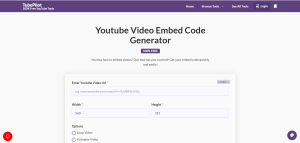
TubePilot YouTube Video Embed Code Generator is a free and easy-to-use tool that allows you to quickly create embed codes for your YouTube videos with customizable options. TubePilot does the complete hassle work by automatically generating an embed code, which instantly gets generated by pasting a YouTube video URL and choosing customization options, to be copied and pasted on any website.
So here is what you need to customize with TubePilot:
- Dimensions of the embedded video (width and height)
- Loop the video automatically.
- Automatically play the video when the page loads.
- Makes it look cleaner, especially for disabling the fullscreen button.
- Some keyboard shortcuts should be disabled to avoid user interactions.
- Hide player controls (play, volume, etc.) for a clean display.
- To be less distracting (minimal branding), remove the YT logo.
- Activates a privacy-enhanced mode; no cookies are saved until the video starts playing.
- Responsive video Moves fit to height parts of the screen.
TubePilot has all of the options in an easy-to-use interface, so you can stop manually editing the embed code, which is great for web designers/content creators and site owners looking to do video embedding without hassle.
Conclusion
Customizing your YouTube video embedded code helps you provide a customized viewer experience and show the videos in a more suited way corresponding to your sit’s design. And even if you tweak the code manually or with a tool like TubePilot to save time by doing it automatically, those suggestions can be implemented into your embedded videos so they have a bigger impact. You can customize everything to eliminate distractions or make sure that the video integrates with your layout, which enables you to manage how video content enhances your website.